Saturday, March 26, 2011

High level language and Low level Computer language

Difference between high level language and low level language

High level languages allow much more abstraction than low level languages. This allows algorithms and functions to be written without requiring detailed knowledge of the hardware used in the computing platform. The compiler provides this interface transparently for the programmer.
 
Examples of high level languages include C, C++, Java, etc.

Low level languages will require more involvement with the actual register and interrupt interfaces to the hardware. This can provide more control and efficiency for the program and can be good for applications which need high speed execution, but high level compilers are much better at optimizing for speed now.


Examples of low level languages include machine language specific to each processor and assembly language specific to each processor.

Source(s):

BSEE and MSEE

Friday, March 11, 2011

Customizing the splash image in Bootloader


Customizing the splash image in Bootloader

The splash image is the image shown in the background when GRUB (the Grub Shell) is displaying the list of operating systems you can boot.
Normally, this is the corporate logo of your Linux distribution. But its very simple to customize it to an image of your choice.
All you need is the GIMP and gzip.
For this you have to follow the simple steps
firsty you need root access and follow the simple steps

1)Start the GIMP.

2)Click on File->New or type Ctrl+N

3)In the new image dialog, change Width to 640 pixels and Height to 480                  pixels. (The image should be of size 640x480 pixels.) Now click OK.

4)Create the image which you would like to be the splash image.

5)After you have finished creating the image,
    hit Alt+i or right click on the image and click on Image->Mode->Indexed...

6)In the Indexed Color Conversion dialog that appears,
    click on the radio button "Generate optimal Palette" and
     in "# of colors" enter 14. Click OK.(The image should be of only 14 colors)

7)Now right-click on the image and click on File->Save As...
     Save the file as  splash.xpm in a directory of your choice.

8)Now open a terminal window and navigate to the directory where you have
     saved splash.xpm

9)Now key in gzip splash.xpm

10)You will find that a file named splash.xpm.gz is created in the directory
     where splash.xpm used to exist.

11)Copy this splash.xpm.gz to the /boot/grub directory.
     You may want to back up the pre-existing splash.xpm.gz file in
      the /boot/grub directory first.

That's it! When you reboot, you will find your image in the background, with the menu of operating systems etc. in the foreground.
Njoy

Wednesday, March 9, 2011

Change Login Screen On Fedora 14


I’ve been doing some tweaks on the machine I set up with Fedora 14 (Laughlin) using Gnome. Things were OK until I decided to change the login screen image. I did a Google search and found a solution that didn’t work for me. I have also read from forums that there was no way to change the image unlike the earlier versions of Fedora. I then had this idea of finding the image used as the login screen background and overwriting it with my preferred image. 
So I checked the “/usr/share/backgrounds/” directory and found a “laughlin” folder. Inside it is a folder named “default” that contains three other folders named normalish, standard, and wide and a laughlin.xml file. The three folders contained the default login screen image.
If you open the xml file with a text editor, you’ll notice that a part of it specifies the path of the Laughlin wallpaper. Wide, Normalish, and Standard specifies the image dimensions. And using this xml file, we can change the login screen image.

                                             Laughlin XML File
Here’s what I did. First, I edited my image three times using the specified dimensions (this is optional) and saved them as PNG files. I then copied them to the three folders with respect to their dimensions.
Firstly go to super User and then follow the steps as per your need 

# cp /current/file/location/filename3.png /usr/share/backgrounds/laughlin/default/normalish/

Using vi, edit laughlin.xml and replace the filenames and save the file. See image below.

Edited Laughlin XML File
I logged off and there was my new login screen. 
Njoy the New login background

Saturday, February 12, 2011

Create a Yum Repository from ISO Images


For installing the packages from DVD after installing the Fedora from the Live Disk
You have to make local repository to list the packages on terminal through yum with offline mode
It means you don't need internet connection for installing the packages on installed fedora if you have Complete fedora DVD iso image 

Now you have to follow simple steps

1. Open the Terminal and go to the Super User by
       $ su

2. Make the backup of your repositories by
       # cp /etc/yum.repos.d/*.repo /home/________________ 
                                                                                 // Choose your suitable path
3. Delete or disable all the repos from the yum.repos.d
for delete
      #rm /etc/yum.repos.d/*.repo

4.Follow these commands
    make folder in /media by
          #mkdir /media/fed
          #cd /media/fed

5. Now mount fedora DVD and copy the whole content into this folder
          #cp -r * /media/fed
Note: check that all the files from the DVD is copied into /media/fed/ folder. If not then do it other wise it shows error

6.Now make the repo by
    #gedit /etc/yum.repos.d/fed.repo
Now Copy & Paste this in file fed.repo
[fed]
name=Fedora 13 DVD
baseurl=file:///media/fed/
enabled=1

save and close it

7. Now follow this
          #yum clean all
     #yum grouplist
Now you see the packages list on the terminal
so try to install packages in group by
     #yum groupinstall groupname

Njoy the offline installation on fedora with Yellowdog Updater Modified(yum)


Friday, December 10, 2010

VLC on Fedora 12/13/14

How to install VLC on Fedora X Y Z

Some of you who recently switched to linux or who are planning to switch to linux, are may be looking for a good media player which will play every thing on Linux, or looking for how to install VLC, This post is a step to step guide about installing VLC on Fedora 12/13/14
So, just follow the steps or copy - paste them to install vlc on your machine. It does not matter what architecture you are using - x86_64 or i686 or i386

Step 1:
$su -c 'yum localinstall --nogpgcheck http://download1.rpmfusion.org/free/fedora/rpmfusion-free-release-stable.noarch.rpm http://download1.rpmfusion.org/nonfree/fedora/rpmfusion-nonfree-release-stable.noarch.rpm'

Step 2: now run
    $su -c 'yum clean all'

Step 3: $su -c 'yum install vlc'

All set to go. VlC is installed successfully.


Just make me know if you get some error.

Monday, November 29, 2010

Skype in Fedora 14 X64


Install  Skype in Fedora14  64bit?
As we know, there is  no  Skype 64bit  available,
So here we use i686  packages to install skype in 64bit.
Our current system is :


[LINUX@fedora-home ~]$ uname -a
Output:
Linux fedora-home 2.6.35.6-48.fc14.x86_64 #1 SMP Mon Nov 29 15:36:08 
UTC 2010 x86_64 x86_64 x86_64 GNU/Linux
To install Skype 32 bit in a 64 bit system we need to install some dependencies using yum:
yum  install libXv.i686 libXScrnSaver.i686 qt.i686 qt-x11.i686 
pulseaudio-libs.i686 pulseaudio-libs-glib2.i686 
alsa-plugins-pulseaudio.i686  -y
Now  download  Skype  from official website and install the rpm package
rpm -ivh skype-2.1.0.81-fc10.i586.rpm
And now
Njoy SKYPE

Saturday, October 16, 2010

OS in Virtual Box on LINUX

How to install any Os in Virtual Box on linux ?

//To install operating system on virtual box just like a nested class

the procedure of installing operating system on virtual box which is installed on linux or windows both are nearly similar. There are many advantages of using Virtual Box like you dont have to use dual boot, you can play windows games on linux, you can test any OS with out really installing it, and some GEEKY reason: you can install an OS which doesnot support your current configuration so that you can use some specific version of any tool for example if you want to try ns1.xx then you will like to go for fedora core 4 or some thing like that for hastle free installation so try Virtual Box and many more. Here are the steps for installing any OS in Virtual Box, I am user of fedora but they are applicable to all the other distribution.

Step 1. Installed virtual box on linux machine (steps are mentioned in this post)

2. Iso image of windows xp or any other linux distro or any other version on windows which u want to install

Now the installation steps are as follows:

1. start virtual box

on fedora

>application>system tools>virtual box

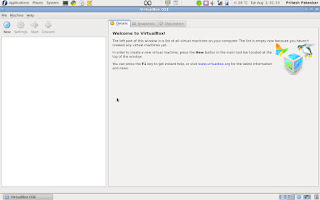
2.After starting the Virtual box

below screen is shown

 
then click on New option as shown
on clicking the new option you get the popup windoe of create New Virtual Machine 
on this click on next button . .


3. after clicking the next button
Give the name to the installation and select the OS type and the respective version for the installation

 
and select next
Now time to allcoate memory
here the main memory(RAM) allocation
allocate it with your requirement (minimun 256 MB)

 
and select next
4. After step 3
select create new hard disk in Boot Hard Disk(Primary Master)

 
and select next

 
and if you not get any error then again . select next.
5. Select the type of virtual hard disk you waqnt to create.

 
between Dynamically expanding or Fixed-size Storage and select next. 
6.Virtual Disk Locaion and Size
Press The Select button to select the location of a file to store the hard disk data or type a file name in the entry fild.


and click next.
7.
After this you are going to create a new virtual hard disk by clicking Finish.

 
8.you are going to create a new virtual machine by press the finish button

 
Now the pop up window will close after pressing the finish button

 
9. select the OS which is shown in left pannel and then select the setting of it.
And configure as shown in Image. 
GENERAL


SYSTEM
DISPLAY

STORAGE

 
In the Storage tree select "Empty"
After this in Attributes section CD/DVD Device select the "oprn virtual Media MAnager"
New pop up window will open in this select the "Add" and add the Browse the .iso image. and


And click OK button.


10. After this start the virtual OS
now the simple way of installing the windows XP or that u are installing
follow the simple OS installing steps.


After installation the OS. Njoy the virtual OS on your LINUX Distro.
One more thing, usually you do not need to install any additional driver after installing Windows Xp as they are built in virtual box. For rest , it varies from OS to OS.